
 0
0
 0
0
Downloading software setup files, game patches, or digital documents from the internet is a routine task for PC users in Korea. However, obtaining a file from third-party blogs on Naver Blog or Tistory, or through file-sharing networks, carries security risks.
A downloaded file might fail to open because it was corrupted during transmission. Worse, an installer may have been modified by third parties to include hidden trojans, ransomware, or crypto-miners.
Fortunately, you do not need expensive commercial antivirus software to verify whether a file is safe. Windows provides built-in tools that allow you to check a file’s integrity using three distinct verification layers before running any installer.
3 security layers: Distinguishing original files from modified files
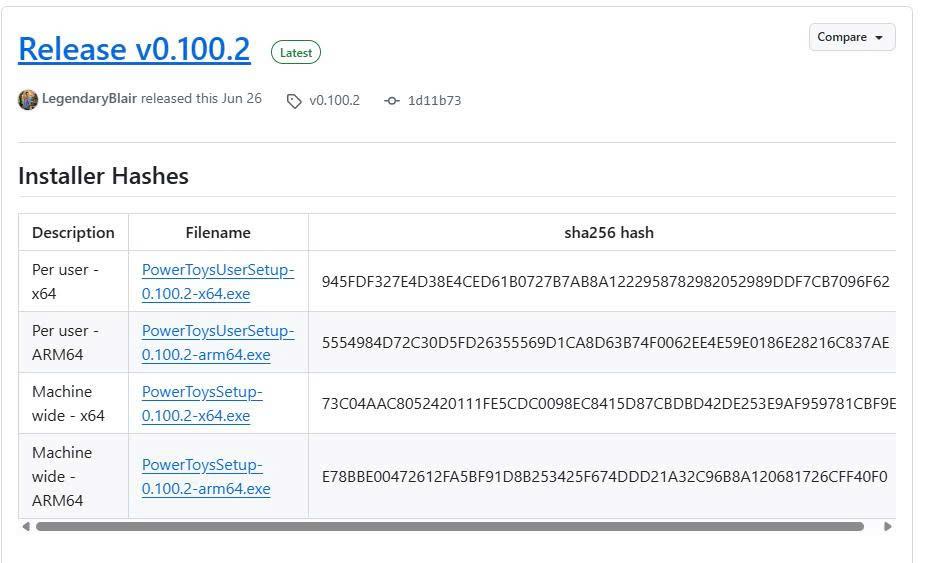
Verifying a file involves cross-referencing your downloaded copy against official metadata published by the software creator. This process relies on three sequential security layers.
Layer 1: Distribution record metadata
Software developers publish official distribution records on their release pages. These records list the exact file name, version build number, and file size measured in bytes. If a downloaded installer shows even a slight discrepancy in byte size compared to the official website, the file was either incompletely downloaded or modified.
Layer 2: Mathematical checksums (SHA-256)
A checksum is a unique cryptographic string generated by processing a file through a mathematical algorithm. If even a single bit of data inside the file is altered, the resulting checksum changes completely. Comparing a file’s SHA-256 checksum string confirms that the file contents remain 100% identical to the publisher’s release.
Layer 3: Publisher digital signatures
Digital signatures verify identity and origin. When developers like AhnLab, Hancom, or Microsoft release an executable file (.exe), they sign the code using a private cryptographic key. Windows verifies this signature to guarantee that the installer came directly from the publisher and has not been tampered with since it was signed.
How to check SHA-256 checksums using Windows CertUtil
You do not need to install third-party hashing utilities on Windows. Microsoft includes a powerful built-in tool called CertUtil inside the Command Prompt.
Opening Command Prompt and running the CertUtil hash command
To calculate the SHA-256 checksum of a downloaded file, open the Windows search bar, type cmd, and press enter to launch the Command Prompt. Type the following command structure and press enter:
CertUtil -hashfile “C:\path\to\your\file.exe” SHA256
Within a few seconds, Command Prompt will process the file and display a long 64-character alphanumeric string.
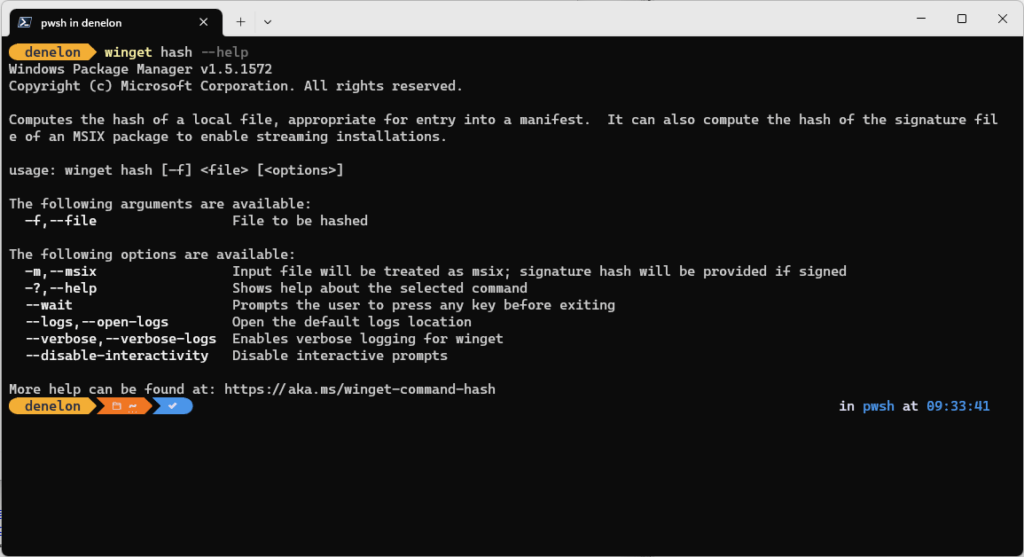
Comparing your generated hash with the publisher’s official code
Copy the 64-character output string and paste it alongside the official SHA-256 hash published on the software developer’s download page.
Compare the two strings character by character. If every character matches identically, your downloaded file is an exact, uncorrupted copy of the original release. If even one character differs, delete the file immediately and re-download it from an official source.
How to check digital signatures to confirm official publishers
Calculating checksums verifies file integrity, but checking digital signatures confirms the true identity of the software publisher.
Inspecting Windows file properties
To inspect the code signing certificate of an installer on Windows, right-click the executable file (.exe or .msi) and select “Properties.” Look for the “Digital Signatures” tab at the top of the properties window. If this tab is completely missing, the executable file was not signed by a recognized developer.
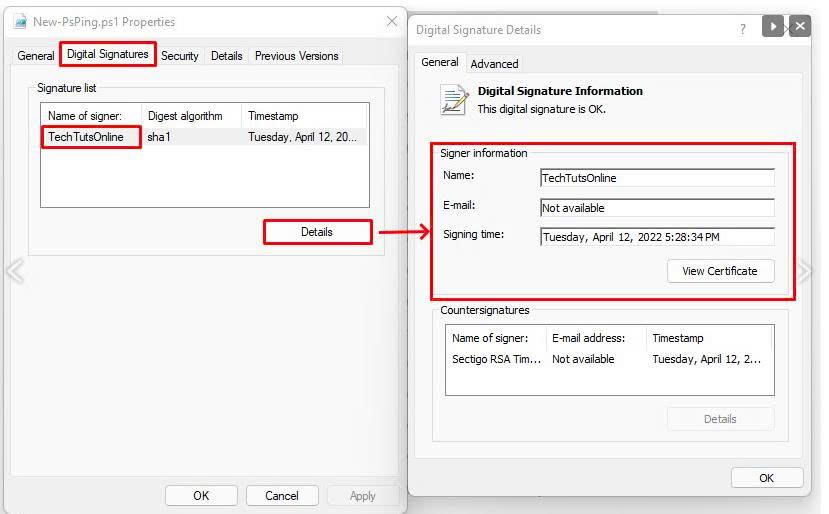
Verifying trusted software names
Click on the signature entry in the list and select “Details.” A valid certificate will state “This digital signature is OK” and display the verified name of the software company, such as AhnLab, Hancom, Kakao, or Microsoft.
If the digital signature status displays an error, states that the certificate is invalid, or lists an unknown individual name, do not run the installer. Delete the file to prevent unauthorized code execution on your computer.
File metadata checklist: What to verify before running an installer
Use this quick reference checklist to audit any downloaded setup file before opening it on your computer:
| What to check | Where to find official record | Action if data does not match |
| Exact file name & extension | Developer’s official download page | Delete file immediately if extension is altered (e.g., .exe.zip) |
| File size in bytes | Download metadata or release notes | Re-download if file size differs even by a few kilobytes |
| SHA-256 checksum | Official security page or release log | Delete file if a single hash character does not match |
| Digital signature status | Windows file properties -> Digital Signatures tab | Do not run installer if signature is missing or marked invalid |


